VS Code


Connect VS Code to DeployStack Satellite with a single URL and give your development team instant access to all managed MCP servers.
No local npm installations, no manual process management, no credential files scattered across machines. DeployStack's encrypted vault stores API keys centrally and injects them automatically into MCP server processes, so developers use tools without ever handling sensitive tokens.
Role-based permissions control which team members access specific MCP servers, while audit logs track every tool interaction. The hierarchical router keeps your context window clean by exposing just two meta-tools instead of hundreds, letting you scale from a handful of MCP servers to over a hundred without degrading Copilot Chat or AI assistant performance.
New team members configure VS Code once and start working in minutes.
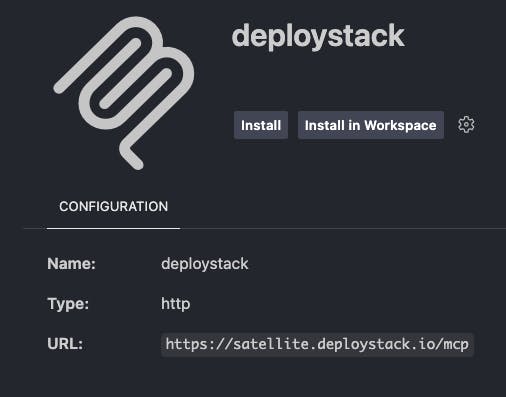
Add DeployStack to VS Code
After adding the remote MCP server - DeployStack satellite - click "Install" in VS Code.
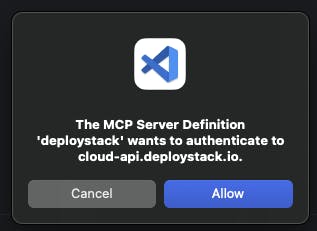
Auth Request
After connecting VS Code to DeployStack, you will see a request window where VS Code recognizes that authentication is necessary (OAuth 2.1 Flow).
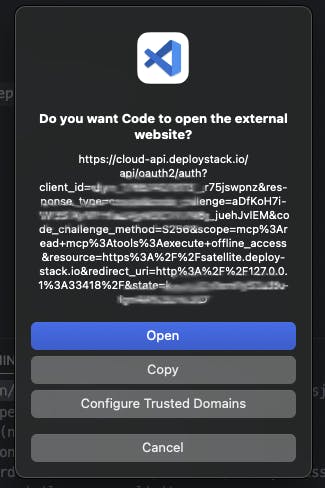
Complete the Auth Flow
VS Code will ask you if you want to open a new browser window - there you select your DeployStack team and permissions.
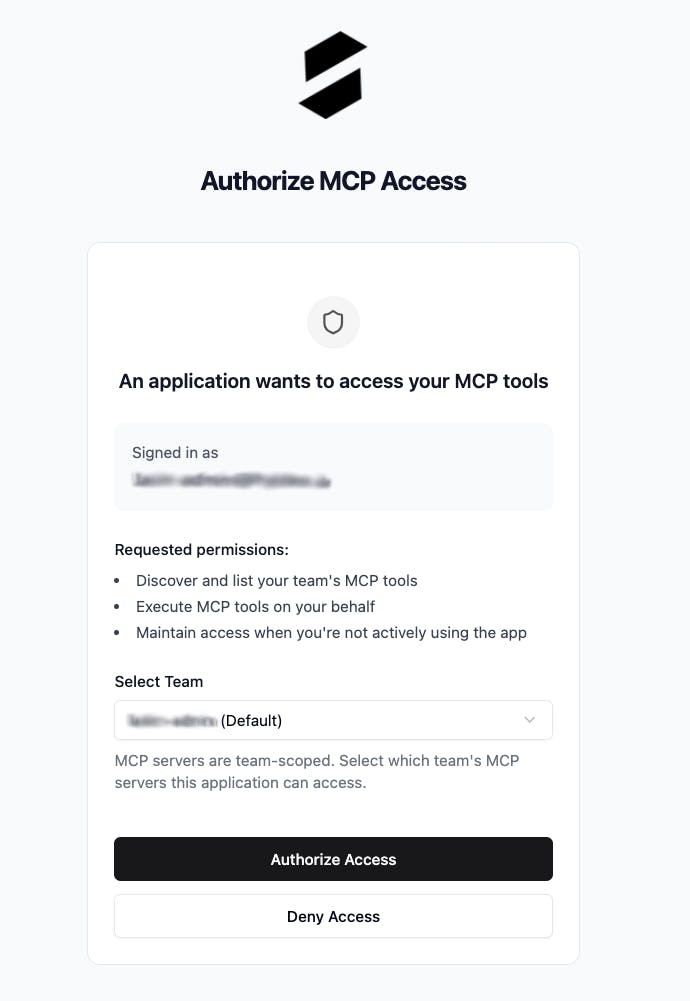
Select Team
Select your team and click on Authorize Access
Your VS Code environment is now connected to DeployStack. Open Copilot Chat or any MCP-enabled extension, and you have immediate access to all MCP servers authorized for your team. Start using tools directly in your editor without any additional configuration.