OAuth Re-auth & Team Controls
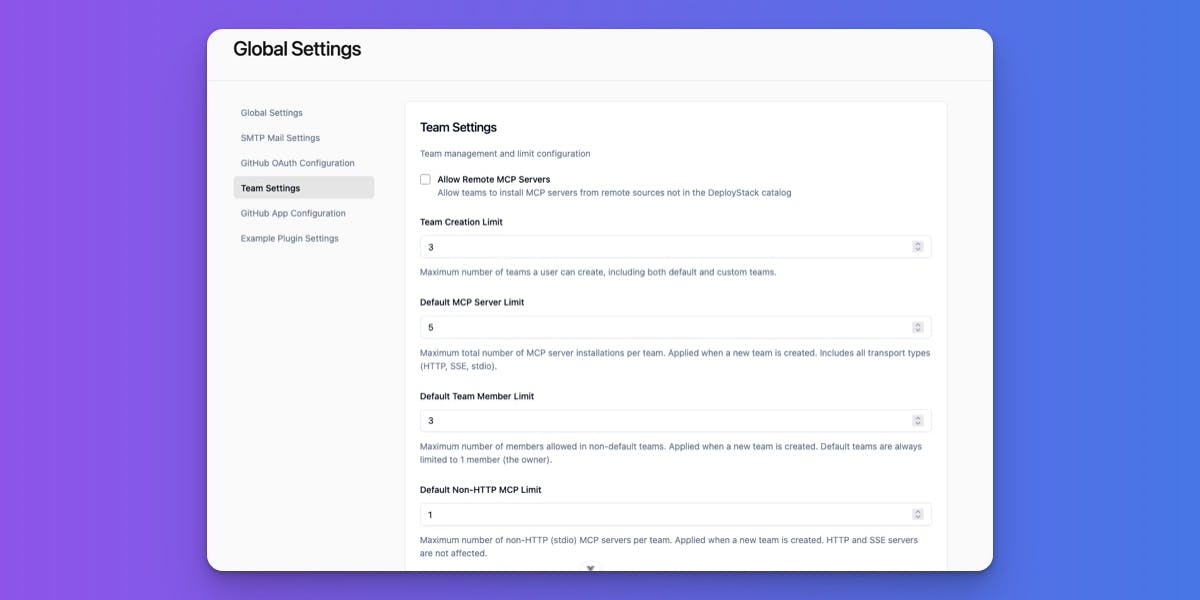
We shipped four updates this week that make team management more flexible, OAuth recovery faster, and MCP server discovery easier. Here's what changed and why it matters for your users.
OAuth Re-Authentication: Recover from Expired Tokens in Seconds
The Problem: When OAuth tokens expired—due to server downtime, token revocation, or failed automatic refreshes—users were stuck. Their MCP servers showed "Auth Required" errors, and the only option was to delete the installation and start over. This meant losing all their configuration, re-entering environment variables, and waiting 5+ minutes to get back online.
What We Built: A one-click re-authentication flow that updates expired tokens without reinstalling anything. When an OAuth token expires, users see a "Re-authenticate" button on their installation details page. Click it, authorize through the OAuth provider's popup, and you're back online in about 30 seconds. All configuration stays intact.
How It Works:
- User navigates to an installation with expired OAuth credentials
- Status shows "Reauth Required" with a clear explanation
- Click "Re-authenticate" → OAuth popup opens (Notion, Box, Linear, etc.)
- User authorizes DeployStack access
- Popup closes automatically with success confirmation
- Installation status updates to "Connected"
- Tools become available immediately
Who Can Use It: All team members, both admins and regular users. Since OAuth tokens are personal credentials, everyone manages their own authorizations.
Technical Implementation:
- Backend: New POST /api/teams/:teamId/mcp/installations/:installationId/reauth endpoint
- Frontend: OAuth popup flow with real-time status tracking via Server-Sent Events
- Database: Added installation_id field to oauthPendingFlows table for linking re-auth flows to existing installations
- Permissions: Requires mcp.installations.view (standard for both admin and user roles)
User Benefits:
- 30-second recovery instead of 5+ minute reinstall process
- Self-service - no waiting for admin help or support tickets
- Configuration preserved - environment variables, custom settings, and headers all stay intact
- Less downtime - faster recovery means your team keeps working
For Support Teams: This should reduce OAuth-related support tickets. When users report token expiration issues, point them to the installation details page and the "Re-authenticate" button. They'll have the issue resolved before you finish typing a response.
Metrics Worth Tracking:
- Re-auth success rate (% of attempts that succeed)
- Average time from "requires_reauth" to "online" status
- Support ticket reduction for OAuth issues
- User satisfaction scores for OAuth functionality
Related Features: This works alongside our existing automatic token refresh (background job every 5 minutes), OAuth discovery system, and AES-256-GCM token encryption. Each user's tokens remain isolated and private per team.
Per-Team Member Limits: Configure Team Sizes Independently
The Problem: All teams shared the same member limit—defaulting to 3 members. If you wanted one team to have 5 members and another to have 10, you had to change the global setting for everyone. This created friction for organizations with different team size requirements.
What We Built: Team member limits are now configurable per team. Administrators can set different limits for each team through the admin panel, giving you control over team sizes based on your organization's structure.
How It Works:
For Administrators:
- Go to Admin → Teams → Select a team
- Go to the "Limits" tab
- Adjust the "Member Limit" field (minimum 1 member)
- Click Save
The limit applies immediately. If a team already exceeds a new lower limit, existing members stay but no new members can be added until the count drops.
For Team Owners: The members interface shows "X of Y members" where Y is the team-specific limit. The "Add Member" button disables when you hit the limit.
Default Teams: Personal teams remain single-user only. Member count information doesn't display for these teams since they can't have additional members anyway.
Technical Implementation:
- Backend: Global setting renamed from team.member_limit to team.default_member_limit
- Database: New member_limit column in teams table (default: 3 members)
- Validation: Enforces minimum of 1 member (at least the owner)
- Admin API: Updated to accept member_limit parameter
Frontend Changes:
- Admin panel includes "Member Limit" input field in Limits tab
- Members list shows dynamic limits from team data
- UI text updated to reflect per-team configuration
- Default team UI simplified (no unnecessary member count display)
Migration: Existing teams automatically received a member limit of 3 (the previous global default). New teams use the global default setting value. No action required for existing deployments.
Breaking Changes: None. This is fully backward compatible. All existing teams keep working exactly as before with their 3-member limit.
Configuration: Administrators can still set the global default through Admin → Settings → Team Settings → "Default Team Member Limit". This sets the initial member limit for newly created teams, but existing teams keep their current limits.
Remote MCP Server Permissions: Control Access to External MCP Servers
The Problem: All teams could only install MCP servers from the DeployStack catalog. Some organizations needed access to custom or private MCP servers hosted on their own infrastructure, but there was no way to enable this selectively without opening it up for everyone.
What We Built: A new per-team permission called allow_remote_mcp that lets global admins control which teams can install MCP servers from remote sources outside the catalog.
How It Works:
For Global Admins:
- Go to Admin Panel → Teams → Select a team
- Go to the General tab
- Find the "Remote MCP Servers" card
- Check the box to allow remote installations
- Click "Save changes"
For Team Members: Team members see their permission status on the team management page. If enabled, they can install MCP servers from any URL. If disabled, they're limited to the DeployStack catalog.
Default Behavior: New teams have this permission disabled by default. Existing teams were updated to disabled during deployment. Global admins can change this setting anytime for individual teams.
Security Consideration: Enabling this permission means team members can install MCP servers from any URL. Remote servers run with the team's permissions, so only enable this for trusted teams with legitimate needs.
Use Cases:
- Enterprise teams running custom internal MCP servers
- Development teams testing private MCP implementations before catalog submission
- Partners integrating proprietary MCP tools
- Beta testers accessing unreleased MCP servers for early feedback
Technical Implementation:
- Backend: Added team.allow_remote_mcp global setting (default: false)
- Database: New allow_remote_mcp column in teams table (migration: 0014_useful_sersi.sql)
- Admin API: Updated to support the new permission field
- Frontend: Admin panel checkbox in General tab with save-on-click behavior (no auto-save)
- Team UI: Read-only display on team management page for transparency
Why This Matters: This gives administrators granular control over security and functionality. You can enable advanced capabilities for teams that need them while keeping stricter controls for others. It's particularly valuable for organizations with mixed trust levels across teams.
Tools Table Search: Find MCP Tools Faster
The Problem: When MCP servers expose dozens or hundreds of tools, finding a specific tool meant scrolling through the entire list. No search, no filters, just manual hunting.
What We Built: A search input field on the tools table that lets users filter tools by name or description in real-time.
How It Works:
- Type in the search box positioned to the left of the Enable/Disable bulk action buttons
- Results update instantly as you type
- Searches both tool names and descriptions
- Case-insensitive matching
- Clear the search input to show all tools again
- Selection counter updates to reflect filtered results
Technical Implementation:
- Component: Updated ToolsTab.vue
- Pattern: Reactive computed property filtering (follows existing users/teams table pattern for consistency)
- Translation: Added key mcpInstallations.details.tools.table.search
- Performance: Client-side filtering, no server requests
Why This Matters: When you're working with MCP servers that have extensive tool catalogs, this makes discovery and management much faster. It's a small change that saves time every single day for power users.