MCP Server: Limits, Usage Tracking, Tool Controls
This release focuses on giving teams better visibility into their MCP server usage and more control over what tools are available. We also made it easier to discover and install MCP servers from our catalog.
Team Usage Tracking
You can now see exactly how many MCP servers your team has installed and how close you are to your limits. We added a new "Usage" tab to the team management page that breaks down your total servers, stdio servers, and HTTP servers with progress bars that turn red when you hit a limit.
We also added a compact usage indicator to the Dashboard and MCP Servers pages. It shows something like "Total MCP Servers 3/5 | stdio MCP Servers 1/1" so you can check your usage at a glance without navigating to team settings.
Personal Configuration During Installation
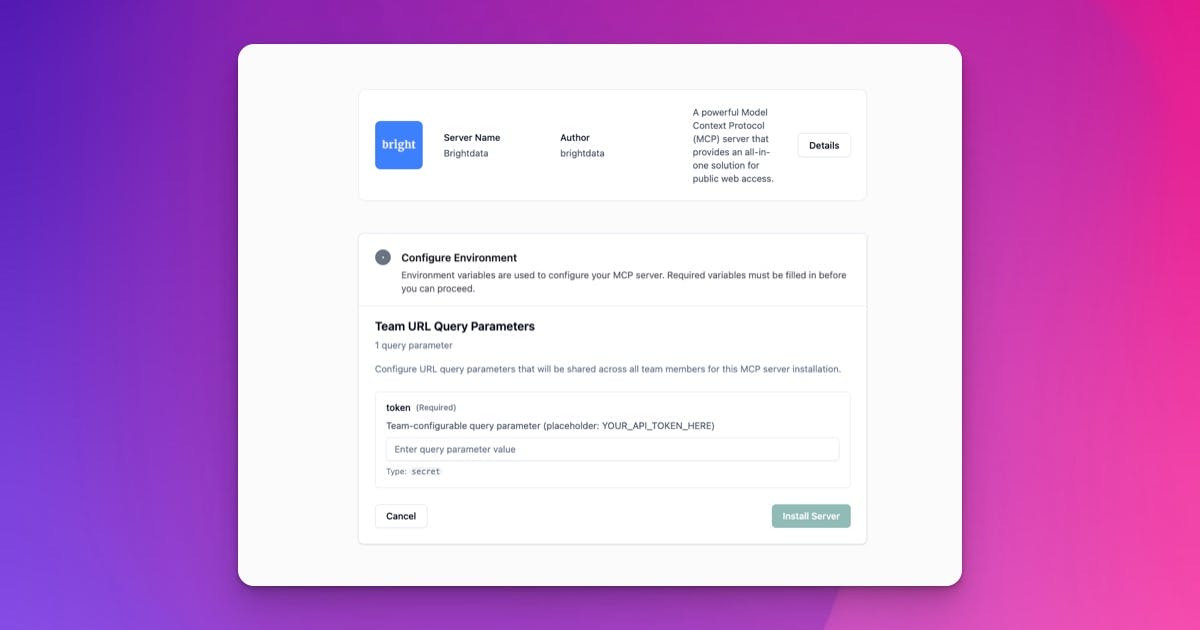
Team admins can now configure their personal MCP server settings right in the installation wizard. Before, you had to complete the installation, then go to a separate page to set up your personal variables. Now it's one step.
Skip it if you want. Configure later. But for most admins, this cuts out several clicks and makes setup feel smoother.
Total MCP Server Limit
Teams now have a total MCP server limit that applies to all transport types. Previously, only stdio servers had a limit. HTTP/SSE servers? Unlimited. That's fixed now - there's a single cap (default is 5) that covers everything.
Administrators can configure both limits when managing teams. Hit your limit? Users see a clear error message telling them to contact their admin.
Featured Servers & Full Catalog
We added two new pages to help you find MCP servers faster. The Featured page (/mcp-server/featured) shows our hand-picked servers organized by category with a sidebar for quick navigation. The Catalog pages (/mcp-server/catalog/:categoryId) let you browse every server in our directory by category.
The install wizard now has "Browse Featured" and "View All Servers" buttons below the search bar. Every catalog category has its own URL, so you can share links to specific server collections with your team.
Disable Individual Tools
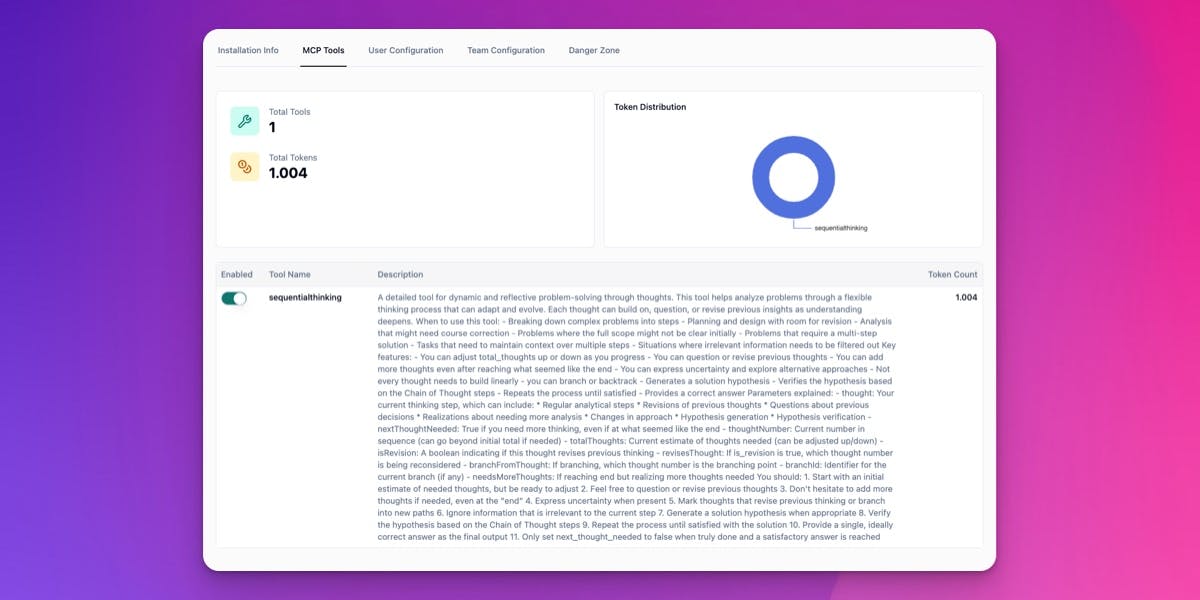
Team admins can now disable specific tools from any MCP server installation. If a server comes with a tool you'd rather your team not use - like delete_repository - you can turn it off without removing the entire server.
Disabled tools won't appear in tool discovery. If someone tries to use one anyway, they get a message explaining that it's disabled and suggesting they look for alternatives. Changes sync to satellites within 2 seconds.