DeployStack Updates - Real-Time Status, Satellite Selection & More
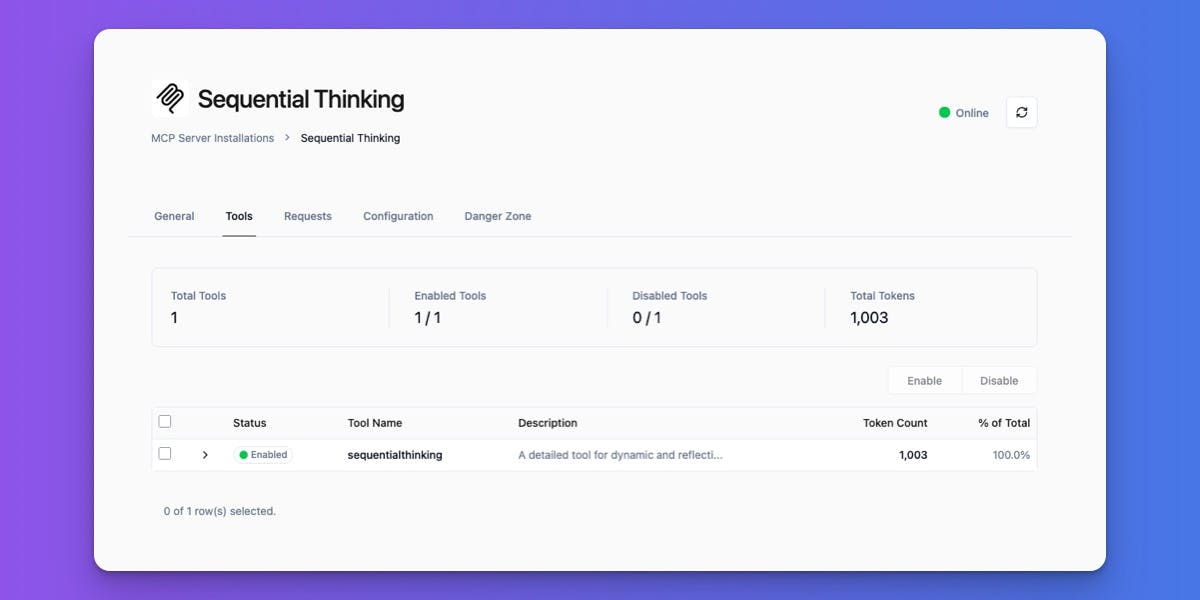
We shipped several improvements to DeployStack over the past two weeks, focusing on real-time status updates, performance optimizations, and giving users more control over their accounts and satellite connections.
Real-Time MCP Server Status Updates
We fixed a frustrating issue where MCP servers would appear "online" even when they'd gone offline. Previously, you had to wait 3-4 minutes for status updates. Now, status changes happen immediately when you run tools.
What changed:
Instant offline detection - When a tool execution fails because the server is offline, the status updates to "offline" right away. No more waiting for health checks.
Automatic recovery - When a server comes back online, the system detects this automatically the next time you use a tool. The server reconnects, refreshes its tools, and updates to "online" in seconds.
Retry logic - Tool executions now retry 3 times (with 0.5s, 1s, and 2s delays) before marking a server as offline. This handles temporary network hiccups without false alarms.
Tools preserved - If a server goes offline, its tools remain visible so you can see what was available. Previously, tools could disappear during failed reconnection attempts.
Recovery attempts enabled - You can now retry tools on offline servers. If the server has recovered, the tool will work and automatically update the status to "online."
Why this matters:
Before this update, a server could go offline during a call but the status would stay "online" for 3-4 minutes. You'd keep trying tools with confusing errors and no way to tell what was happening. Now, when a server goes offline, the status updates to "offline" within 4 seconds. You know immediately what happened, and when the server comes back, one tool execution detects it and reconnects automatically.
What you'll see:
The status badge in your dashboard updates within seconds instead of minutes. You'll see "offline" when a server can't be reached, "error" for other failures, and "requires re-auth" when OAuth tokens expire. Tools stay in your list even when servers are temporarily offline.
Satellite Selection for MCP Client Configuration
We added satellite selection dropdowns to both the dashboard configuration modal and the client configuration page. You can now choose which satellite to connect your MCP clients to, instead of being locked to a single hardcoded satellite URL.
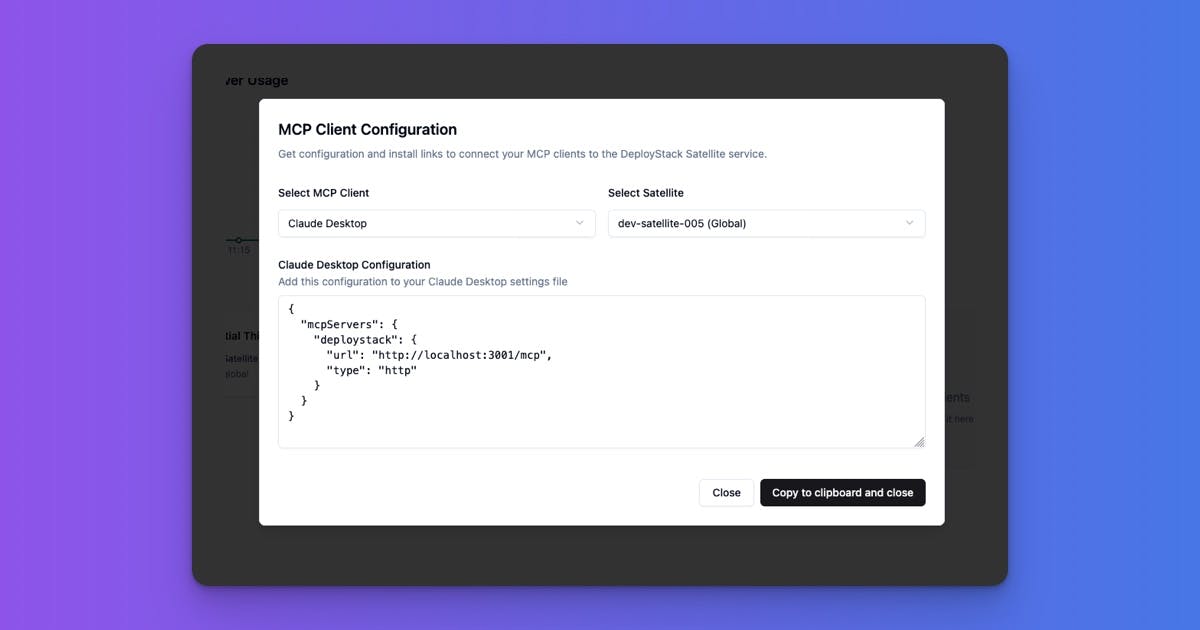
Before this change:
- All users were automatically connected to https://satellite.deploystack.io
- No way to choose a different satellite
- Team satellites couldn't be used for MCP client configuration
- Configuration was one-size-fits-all
After this change:
- Users select which satellite they want to use
- Team satellites show up alongside global satellites
- Configuration automatically updates with the selected satellite's URL
- Each team can use their own satellite infrastructure
Where you'll find it:
Dashboard modal - Added satellite dropdown above the MCP client selector. Client selection (left) and satellite selection (right) in a 50/50 layout. If you only have one satellite, we auto-select it for you. If no active satellites are available, you'll see a clear message to contact your administrator.
Client configuration page - Satellite dropdown appears at the top of the sidebar. Switching satellites automatically reloads the configuration. Same auto-selection behavior as the dashboard.
Benefits:
Choose the satellite that makes sense for your use case. Use your team's satellite instead of shared global infrastructure. Connect to satellites closer to your infrastructure for better performance. Know exactly which satellite you're connecting to with clear feedback.
In-Memory Cache for Global Settings
Global settings are now cached in memory instead of being fetched from the database on every request. The cache loads automatically when the server starts and refreshes whenever an admin updates a setting.
Why this matters:
Before this change, every API request that checked a global setting (like whether to show the API version or enable Swagger docs) triggered a database query. For high-traffic endpoints like the health check (/) or documentation page (/documentation), this created unnecessary database load. With dozens of settings and potentially thousands of requests per minute, those database calls add up.
Now, all setting reads happen instantly from memory. The database is only touched once at startup and again when an admin saves a change. This reduces latency on every request and eliminates a significant source of database traffic, making the platform faster and more efficient as usage scales.
How it works:
Settings load into memory on server startup. All setting reads happen from the in-memory cache. The cache automatically invalidates and reloads when settings are modified via the admin panel. If the cache isn't ready for some reason, the system falls back to database queries (graceful degradation).
Self-Service Account Deletion
Users can now delete their own accounts directly from their profile settings. This gives users full control over their data and meets compliance requirements for data privacy regulations.
How it works:
We added a "Delete Account" section to the user profile page. The UI shows a clear list of what gets deleted (account, default team, MCP installations, team memberships, preferences, and sessions), a warning that the action is irreversible, and a confirmation modal requiring users to type "sudo delete account" to proceed.
Safety checks:
Before allowing deletion, the system checks if the user owns any non-default teams. If they do, deletion is blocked and the user sees a warning message listing the teams they need to delete or transfer first. This prevents orphaned teams and ensures data integrity.
What gets deleted:
When you delete your account, we remove: your user account (email, username, profile information), your default team and all associated data, all MCP servers installed in the default team, your memberships in any teams you belong to but don't own, all saved settings and configurations, all login sessions across devices, and background commands related to your team.
Cleanup process:
The deletion happens in a specific order: validate you don't own non-default teams, remove team memberships from other teams, delete all MCP installations from the default team, create satellite commands to stop any running MCP processes, send confirmation email, delete satellite commands, delete the default team, delete all sessions, delete the user account, and log you out automatically.
Email confirmation:
After deletion completes, we send a confirmation email to your email address. The email lists everything that was deleted and confirms the account is permanently removed.
What this enables:
Users can exercise their "right to be forgotten" under GDPR and similar regulations. Clear control over personal data builds confidence in the platform. Prevents abandoned accounts from cluttering the system. No need to contact support to delete an account.
All of these changes are live now. If you run into any issues or have questions, let us know.