DeployStack Updates - January 18 2026
We shipped five updates this week that make DeployStack more reliable, easier to manage, and better at helping you troubleshoot MCP servers.
MCP Servers Now Recover Automatically
Remote MCP servers (like Context7 or Brightdata) used to get stuck at "Connecting" after network hiccups. You had to uninstall and reinstall to fix it.
Not anymore. We added a two-layer recovery system:
- When a tool call fails, the satellite reconnects immediately (most issues resolve in seconds)
- If that doesn't work, the backend health check (runs every 3 minutes) detects when the server is back and triggers reconnection
You won't notice this until you don't have to reinstall an MCP server after a temporary network issue.
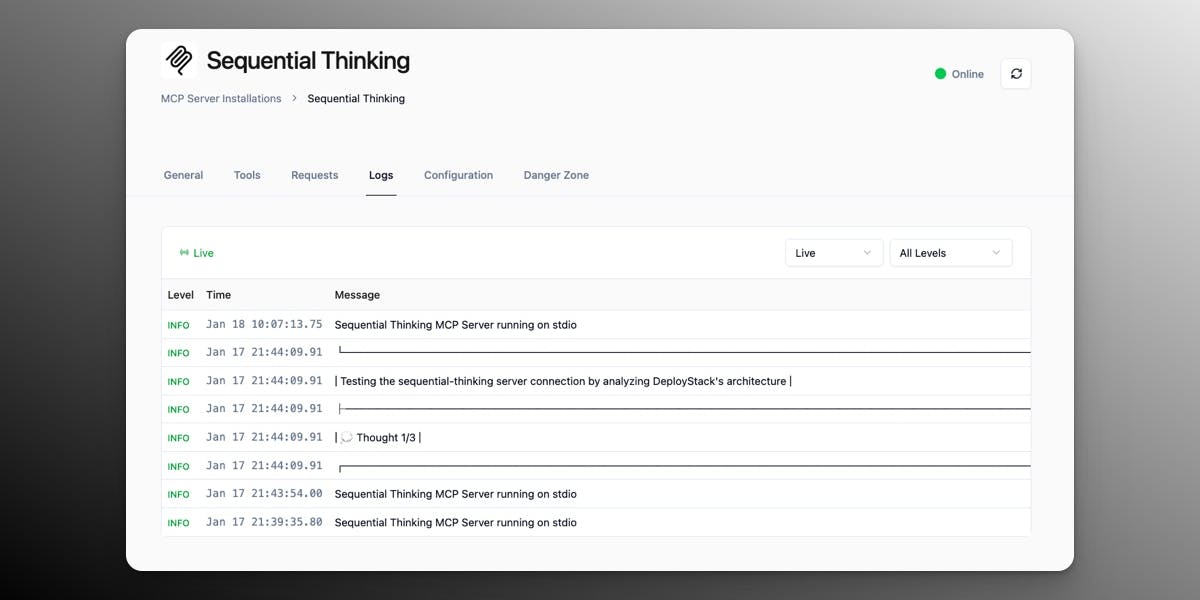
See What's Happening with Real-Time Logs
Team administrators can now view MCP server logs directly in the dashboard. No SSH access needed, no command-line tools.
When you open an MCP server installation, you'll see a new "Logs" tab that shows:
- Live log streaming as your MCP server generates them
- Filters by severity (Info, Warnings, Errors, Debug)
- Timestamps with timezone details on hover
This makes debugging faster. Instead of waiting for support or digging through server files, you can see what's happening right now.
Team Management Gets Smarter
The Teams Management table now shows two new columns:
- MCP Servers: How many servers each team has installed (click the number to jump to their MCP servers page)
- Members: How many members are on the team (click to see the full list)
We also removed the technical "Slug" column to make room. Every clickable element highlights on hover, and you can jump to team details with one click instead of clicking "View" and hunting through tabs.
Behind the scenes, we optimized database queries to fetch all this information in a single request per page, so the interface stays fast even as your platform grows.
Monitor Team MCP Instances at a Glance
Team admins can now click on any MCP server installation to expand and see all team members' instances. Each instance shows:
- Real-time status (online, provisioning, error, offline)
- User information (username and email)
- Status messages for troubleshooting
- Last health check timestamps
Regular team members see only their own instance when they expand an installation. The feature uses lazy loading - instances only load when you expand the row - so pages load faster.
New Controls for GitHub-Based MCP Installations
DeployStack can now install MCP servers directly from GitHub repositories (similar to how Vercel deploys from GitHub). We added three new team-level settings to control this:
- Allow GitHub MCP Servers - Toggle whether teams can install from GitHub
- Allow Private GitHub Repositories - Control access to private repos (requires GitHub authentication)
- GitHub MCP Server Limit - Set how many GitHub-based servers each team can run
Platform administrators can set global defaults for new teams, then override settings for individual teams as needed. Teams can view their GitHub MCP settings at /teams/manage/{teamId}/usage.
This gives you fine-grained control over GitHub installations while unlocking new distribution options:
- Developers can publish MCP servers without waiting for catalog approval
- Teams can build and deploy private MCP servers for internal use
- Community-built MCP servers can be installed directly from repos
The feature is disabled by default (opt-in), so it won't affect existing teams.
What's Next
These updates set the foundation for upcoming features like automatic builds from GitHub source, version management, and webhook integration for auto-updates when repos change.