DeployStack Changelog - December 10 2024 Updates
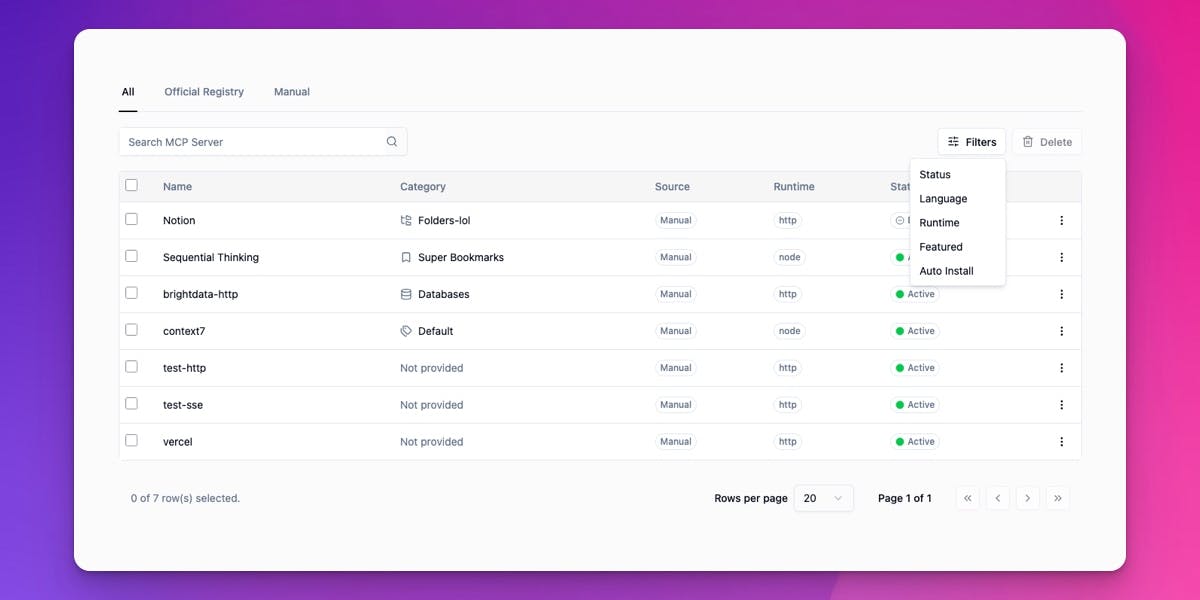
This week we focused on the MCP Server Catalog admin experience. You'll find a redesigned table, better search and filters, bulk actions, and improved background job tracking.
Table Redesign
We updated the MCP Server Catalog table with a cleaner look and better navigation. The pagination controls now follow a modern layout with the rows-per-page selector on the left, a page indicator showing "Page X of Y" in the center, and navigation buttons (first, previous, next, last) on the right. On mobile, the design adapts by hiding less essential controls while keeping core navigation accessible.
The three-dot menu on each row now includes more actions: View to open server details, Edit to jump directly to the edit form, Enable/Disable to toggle server availability, and Delete to remove the server. We also cleaned up the typography with consistent text weights, better spacing between table elements, and more prominent status badges.
These updates make managing large server catalogs faster. Admins can now edit servers without navigating away from the list, and the new pagination makes it easier to browse through hundreds of entries.
Wildcard Search for Tool Discovery
The discover_mcp_tools meta-tool now supports as a wildcard query. When you use query: "", you get a list of all available tools instead of an empty result. Previously, if you weren't sure what tools were available or wanted to browse everything, searching with returned zero results. That's because Fuse.js (our fuzzy search library) treats as a literal character, not a wildcard.
The wildcard query returns up to 20 tools to keep responses manageable. When more tools are available, the response includes a notice with the total count and suggestions for finding additional tools with specific keywords like "github", "database", or "markdown".
On the technical side, wildcard detection happens before search execution and uses a listAll() method instead of Fuse.js search. It still respects disabled tool filtering and has no performance impact on regular searches.
Improved Search & Filters
We rebuilt the search and filtering experience in the MCP Server Catalog admin page. The search input now sits on the left with a filters dropdown button and bulk delete button on the right, creating a cleaner, more compact layout that doesn't take up as much vertical space.
When you click a filter from the dropdown (Status, Language, Runtime, Featured, Auto Install), it appears as a compact chip below the search bar. Each chip shows the filter label, a dropdown to select a value, and an X to remove it. Filters apply immediately when you select a value—no need to click a separate search button. Filter selections persist when the table refreshes.
The source tabs (All / Official Registry / Manual) now properly filter search results. Previously, switching tabs while searching would show the same results regardless of which tab was selected. We also added skeleton loading states so you see animated placeholders instead of the whole page disappearing when the table is loading.
Mass Delete for MCP Servers
Admins can now select multiple MCP servers and delete them in one action. The MCP Server Catalog table includes checkboxes for selecting servers: row checkboxes to select individual servers, a header checkbox to select or deselect all servers on the current page, and a selection counter showing "X of Y row(s) selected" at the bottom of the table.
A "Delete" button appears above the table (disabled until servers are selected). When you click it, a confirmation dialog shows how many servers will be deleted and warns about background job processing. The deletion creates background jobs for each server. Teams with installations will be notified, and the servers are removed as jobs complete.
Managing large server catalogs is faster when you can select and act on multiple items at once. Instead of deleting servers one by one, admins can select a batch and remove them together.
Enable/Disable MCP Servers
Admins can now disable MCP servers directly from the catalog. From the MCP Server Catalog, global admins can toggle server availability using the three-dot menu on any server row. Two actions are available: Disable prevents new installations of the server, and Enable restores it to active status.
When an admin disables a server, new users cannot install it, but existing installations continue to work normally. The server appears grayed out in the catalog with a "Disabled" badge. This gives admins control over which MCP servers are available for installation without affecting teams that already use them.
Use cases include temporarily blocking a problematic server while investigating issues, phasing out deprecated servers by preventing new adoptions, and controlling rollout of new servers by keeping them disabled until ready.
Improved Background Job Visibility
We improved how scheduled background tasks are tracked in DeployStack. Previously, if a scheduled task failed before it could be recorded, administrators had no way to see what went wrong—the failure was only visible in server logs and the admin panel showed nothing. Now, every scheduled task is immediately recorded in the system the moment it's triggered.
Every scheduled task appears in the Jobs admin panel (/admin/jobs) immediately when triggered. If something fails, you'll see it as a failed job with error details. This gives you a complete history of all scheduled task executions for a full audit trail.
This improvement applies to all recurring background tasks: OAuth token refresh (every 5 minutes), satellite heartbeat cleanup (every 3 minutes), activity metrics cleanup (every 30 minutes), and old job cleanup (every 6 hours). For developers creating custom cron jobs, the new interface is simpler—just define the job type and payload, and the system handles job creation automatically, ensuring the job record exists before any work begins.