Admin MCP Server Filtering: Find What You Need, Fast
We added comprehensive filtering to the MCP Server Catalog for Global Administrators. If you manage dozens or hundreds of MCP servers across your organization, finding specific servers just got significantly easier. The new filter system pulls runtime environments and programming languages directly from your database, so filters stay current as your catalog grows. Search by text, narrow results by status or runtime, or combine multiple filters to zero in on exactly what you need.
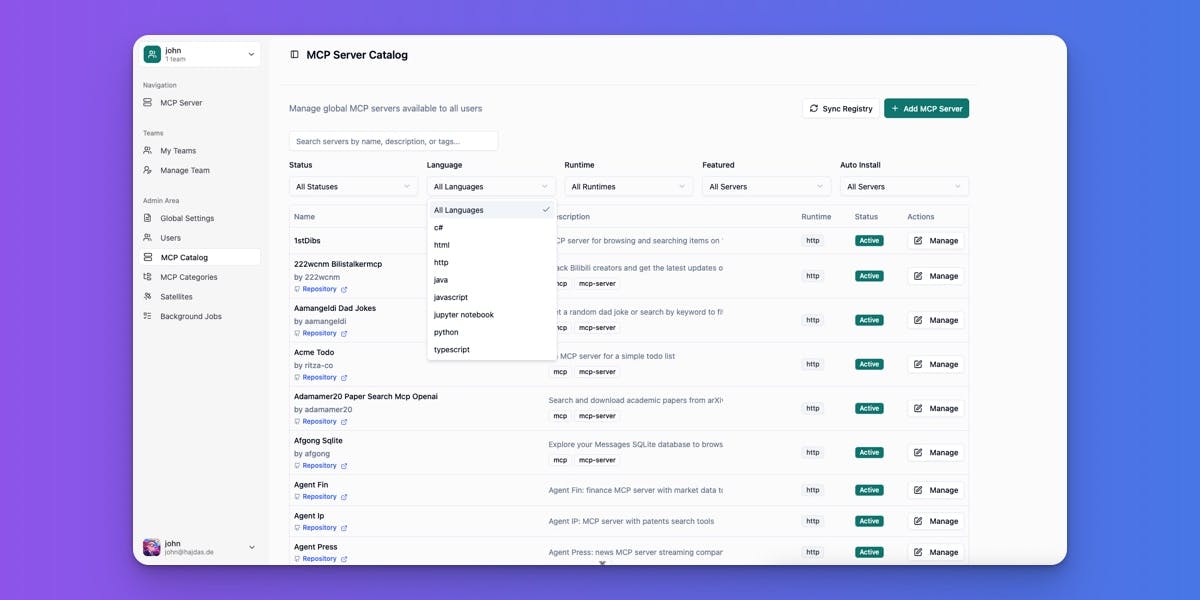
Managing a large MCP server catalog used to mean scrolling through pages of servers to find what you needed. We've added a filter system that sits at the top of the catalog page. Type a search term to find servers by name or description, then refine results using dropdown filters for status (active, deprecated, maintenance), programming language, runtime environment, featured status, and auto-install settings. All filters work together—select "Python" and "active" to see only production-ready Python servers. The filter dropdowns populate automatically from your database, so when new languages or runtimes appear in your catalog, they show up in the filters without any configuration.

The changes apply only to Global Administrator accounts managing the global MCP server catalog. Team administrators and regular users see the catalog without these filters since they're browsing, not managing hundreds of entries. We built this after seeing administrators struggle to locate specific servers in catalogs with 50+ entries. The search uses a 300ms debounce to avoid hammering your database while you type, and pagination controls remain at the bottom so you can browse filtered results across multiple pages. Clear all filters with one click when you're done.